> ## Documentation Index
> Fetch the complete documentation index at: https://polar.sh/docs/llms.txt
> Use this file to discover all available pages before exploring further.
# Polar Integration in Fernand
> Learn how to sync customer and payment data from Polar to Fernand.
 ## What is Fernand?
[Fernand](https://getfernand.com/) is a modern customer support tool designed for SaaS — it’s fast, calm, and built to reduce the anxiety of answering support requests.
## How it works
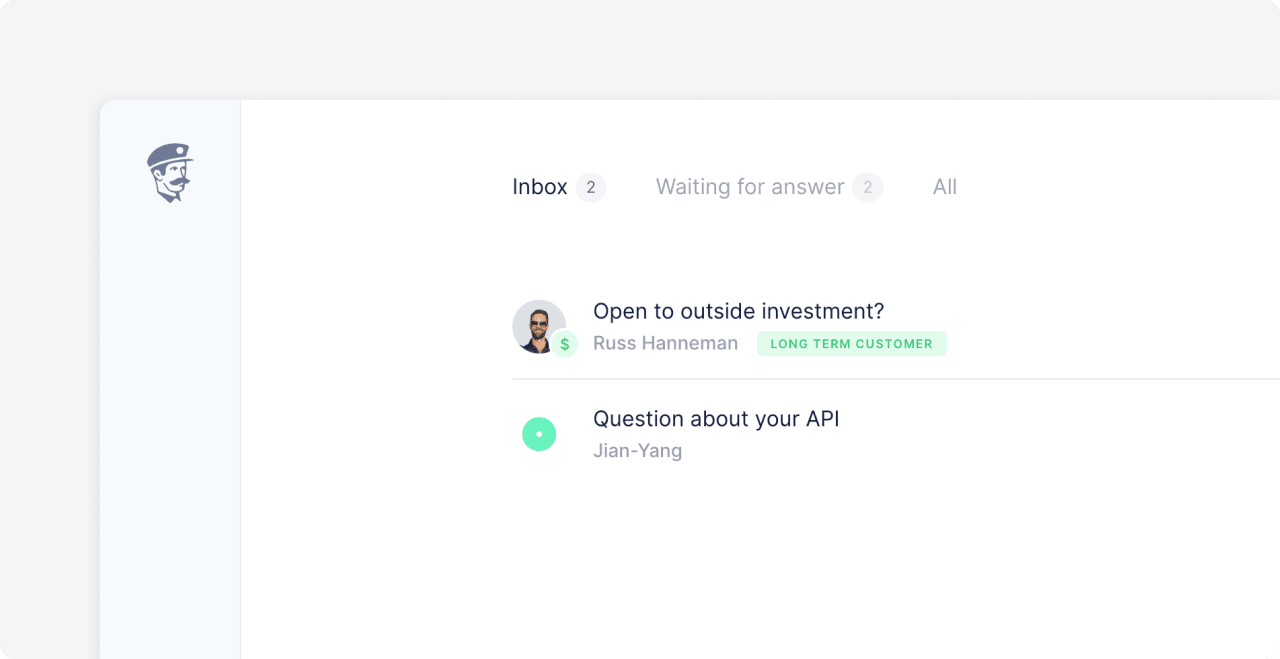
After connecting your [Polar](https://polar.sh/) account to Fernand, you’ll be able to see customer payment information and product access details directly within each customer conversation.
This enables you to:
* Instantly verify if someone is an active customer
* Prioritize conversations from high-tier plans
* View product purchases and payment history in context
***
## How to connect Fernand with Polar
## What is Fernand?
[Fernand](https://getfernand.com/) is a modern customer support tool designed for SaaS — it’s fast, calm, and built to reduce the anxiety of answering support requests.
## How it works
After connecting your [Polar](https://polar.sh/) account to Fernand, you’ll be able to see customer payment information and product access details directly within each customer conversation.
This enables you to:
* Instantly verify if someone is an active customer
* Prioritize conversations from high-tier plans
* View product purchases and payment history in context
***
## How to connect Fernand with Polar
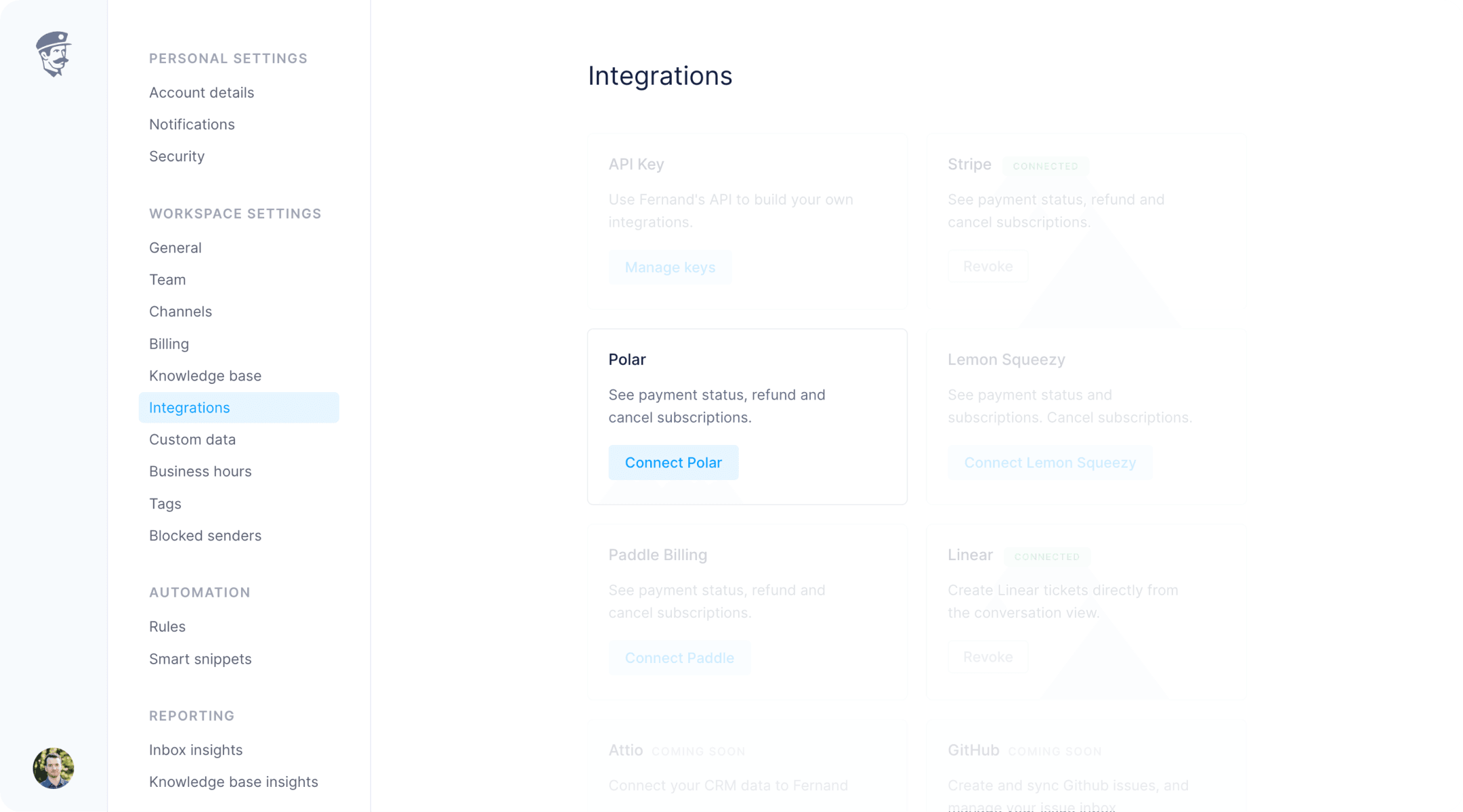 1. Open [Integrations](https://app.getfernand.com/settings/organization/integrations) in your Fernand organization settings.
2. Click on **Connect Polar**.
3. You'll be redirected to Polar to authorize the connection.
4. Once approved, Fernand will begin syncing customer data automatically.
That’s it! You’ll now see Polar customer info directly in Fernand's conversation list and sidebar.
***
## How to automate your inbox with Polar data
Once Polar is connected, you can create automation rules in Fernand based on Polar data.
Let’s walk through a basic example: auto-replying to all customers on your `Pro` plan.
1. Open [Integrations](https://app.getfernand.com/settings/organization/integrations) in your Fernand organization settings.
2. Click on **Connect Polar**.
3. You'll be redirected to Polar to authorize the connection.
4. Once approved, Fernand will begin syncing customer data automatically.
That’s it! You’ll now see Polar customer info directly in Fernand's conversation list and sidebar.
***
## How to automate your inbox with Polar data
Once Polar is connected, you can create automation rules in Fernand based on Polar data.
Let’s walk through a basic example: auto-replying to all customers on your `Pro` plan.
 ### Create a new rule
1. Go to [Rules](https://app.getfernand.com/settings/organization/rules) in Fernand.
2. Click `Add rule` and give it a descriptive name.
### Create a new rule
1. Go to [Rules](https://app.getfernand.com/settings/organization/rules) in Fernand.
2. Click `Add rule` and give it a descriptive name.
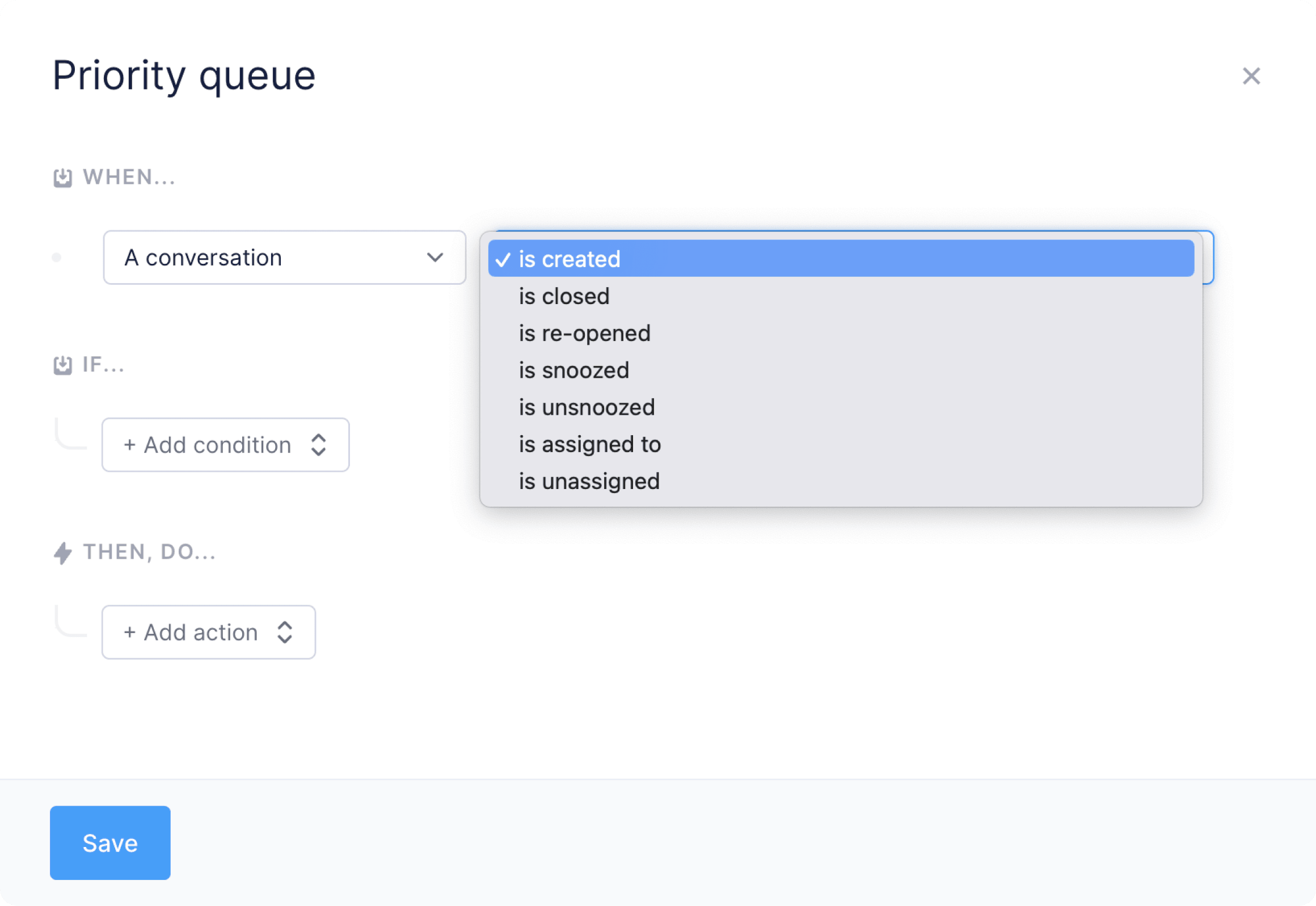
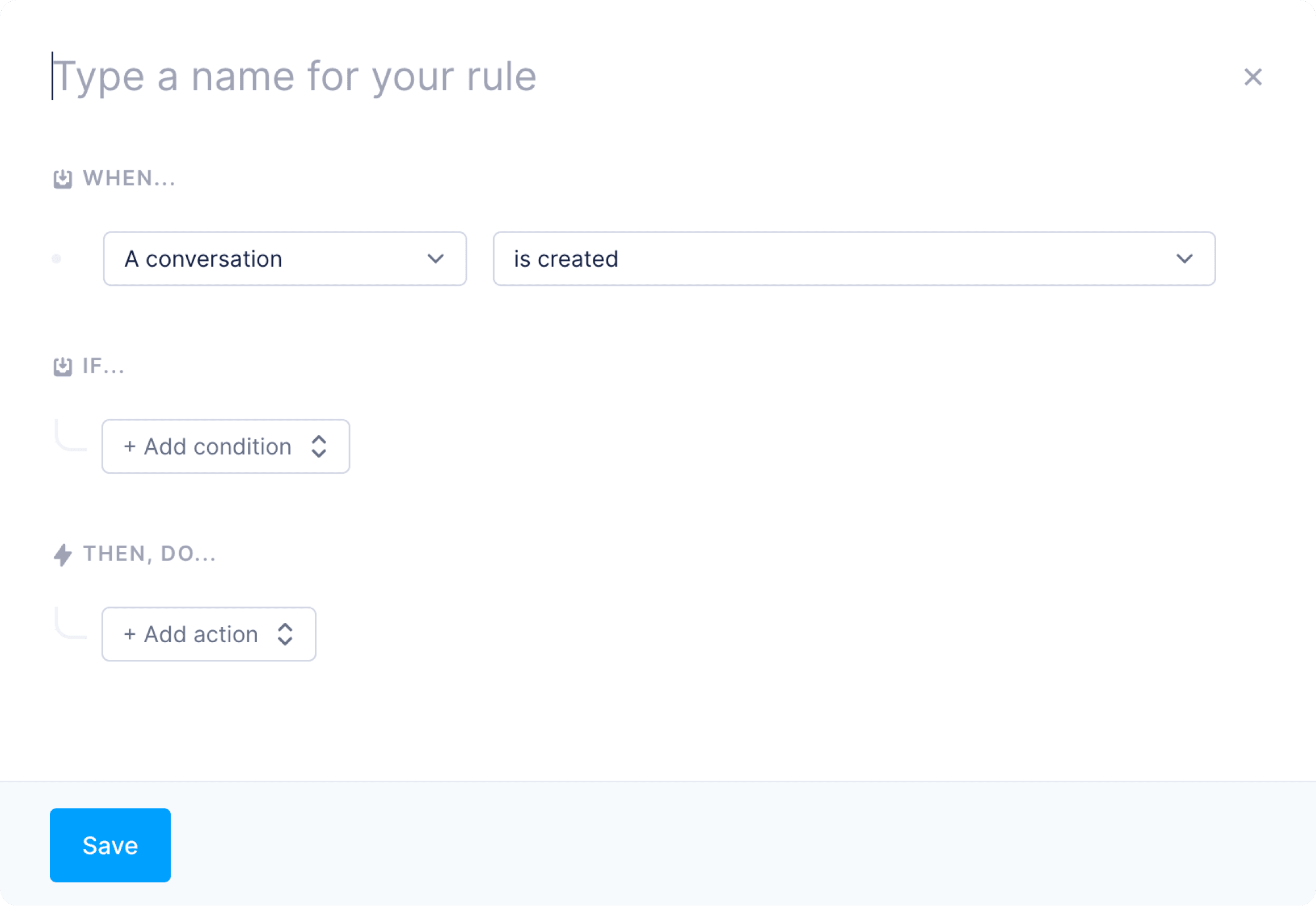 This ensures the rule runs on each new customer message.
 Now add a condition based on Polar data. For example:
* `Contact is a customer...`
* `Contact has paid plan...`
You can target specific plans (e.g. `Pro`, `Business`) or specific products to personalize support or automate prioritization.
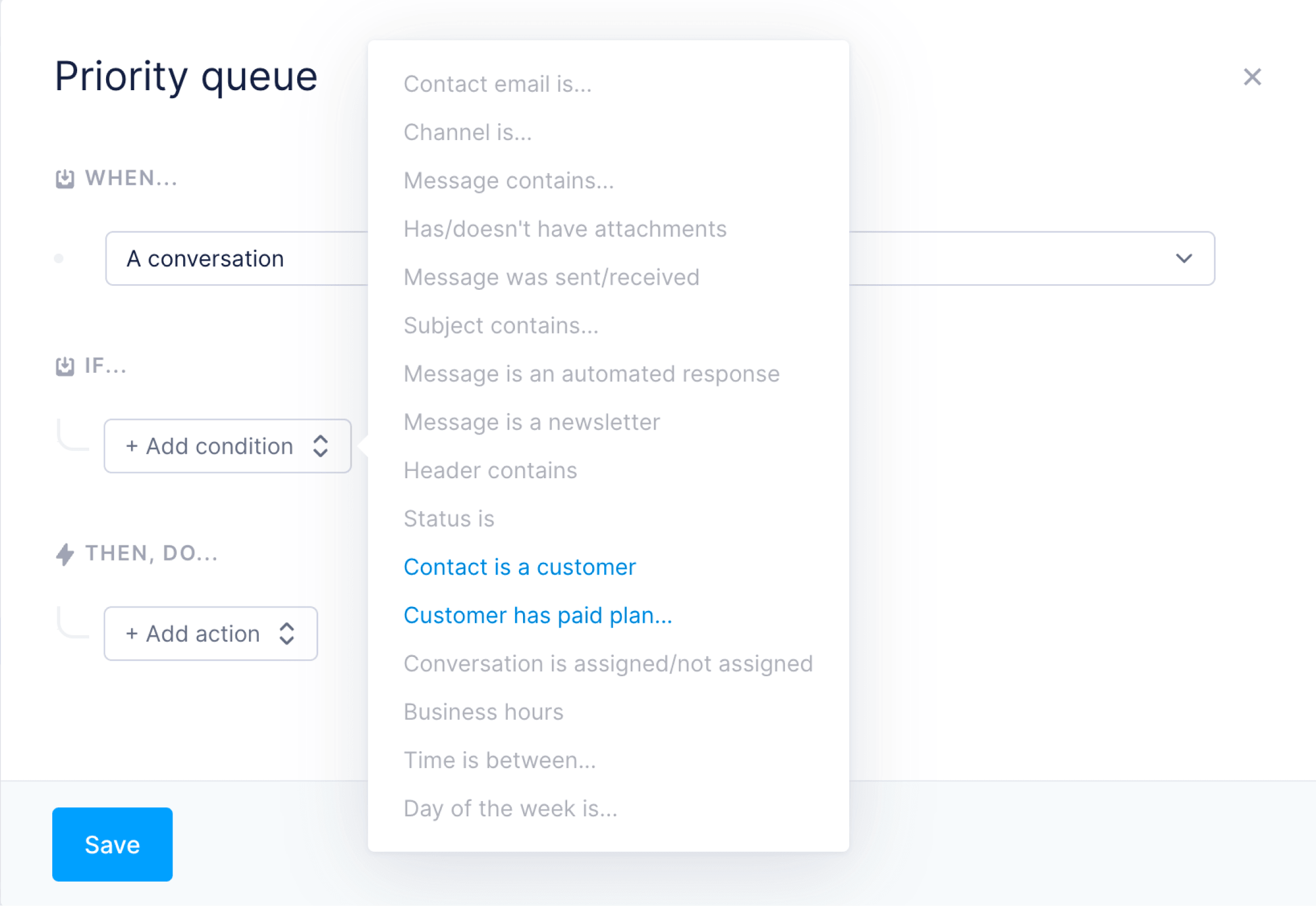
Now add a condition based on Polar data. For example:
* `Contact is a customer...`
* `Contact has paid plan...`
You can target specific plans (e.g. `Pro`, `Business`) or specific products to personalize support or automate prioritization.
 Now define what happens when the rule matches. For example:
* Send an auto reply (with variables)
* Assign the conversation to a specific agent
* Tag the conversation with `priority` or `paid`
* Trigger a webhook for external automation
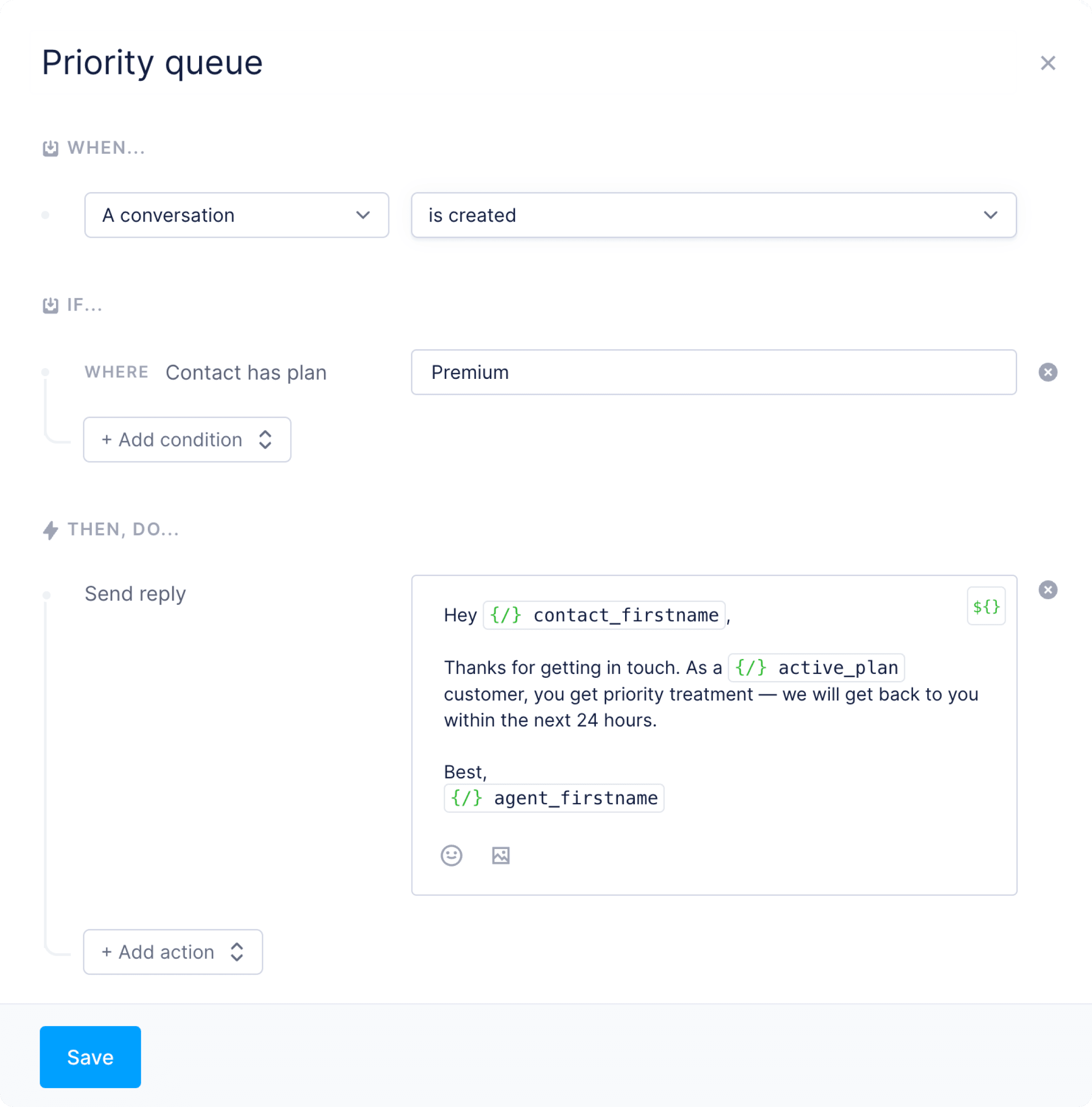
Now define what happens when the rule matches. For example:
* Send an auto reply (with variables)
* Assign the conversation to a specific agent
* Tag the conversation with `priority` or `paid`
* Trigger a webhook for external automation
 ### Disconnecting the integration
If you ever want to disconnect Polar from your Fernand workspace:
Deleting your organization on Fernand will also remove the Polar integration automatically.
### Disconnecting the integration
If you ever want to disconnect Polar from your Fernand workspace:
Deleting your organization on Fernand will also remove the Polar integration automatically.